¶ Nitro Rewards Integration Manual (Shopify)
Overview
This SOP outlines how to integrate Nitro Rewards into a Shopify store by adding the Nitro Claim extension to the post-purchase journey.
This ensures users are redirected to the Nitro Rewards page immediately after completing a purchase.
Objective
- Enable Nitro Rewards on Thank You / Order Status Page
- Ensure seamless post-purchase redirection
- Activate rewards discovery experience for users
Pre-Requisites
Before starting:
- Shopify Admin access available
- Nitro Rewards app installed
- Brand approved for onboarding (as per Nitro Rewards SOP)
¶ Step-by-Step Integration Process
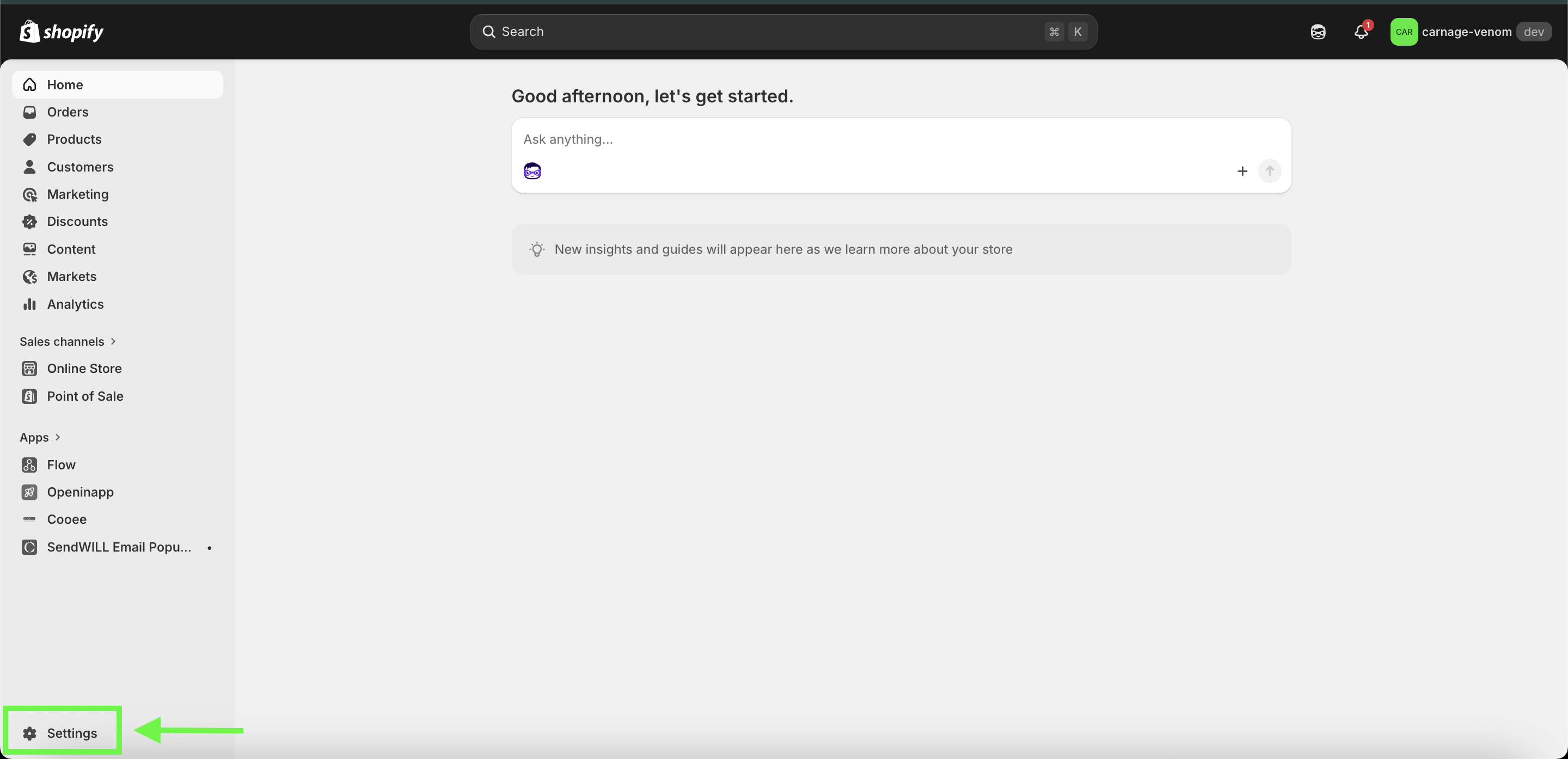
Step 1: Access Shopify Admin Panel
- Log in to Shopify Admin using brand credentials
- From left-hand menu → Click Settings
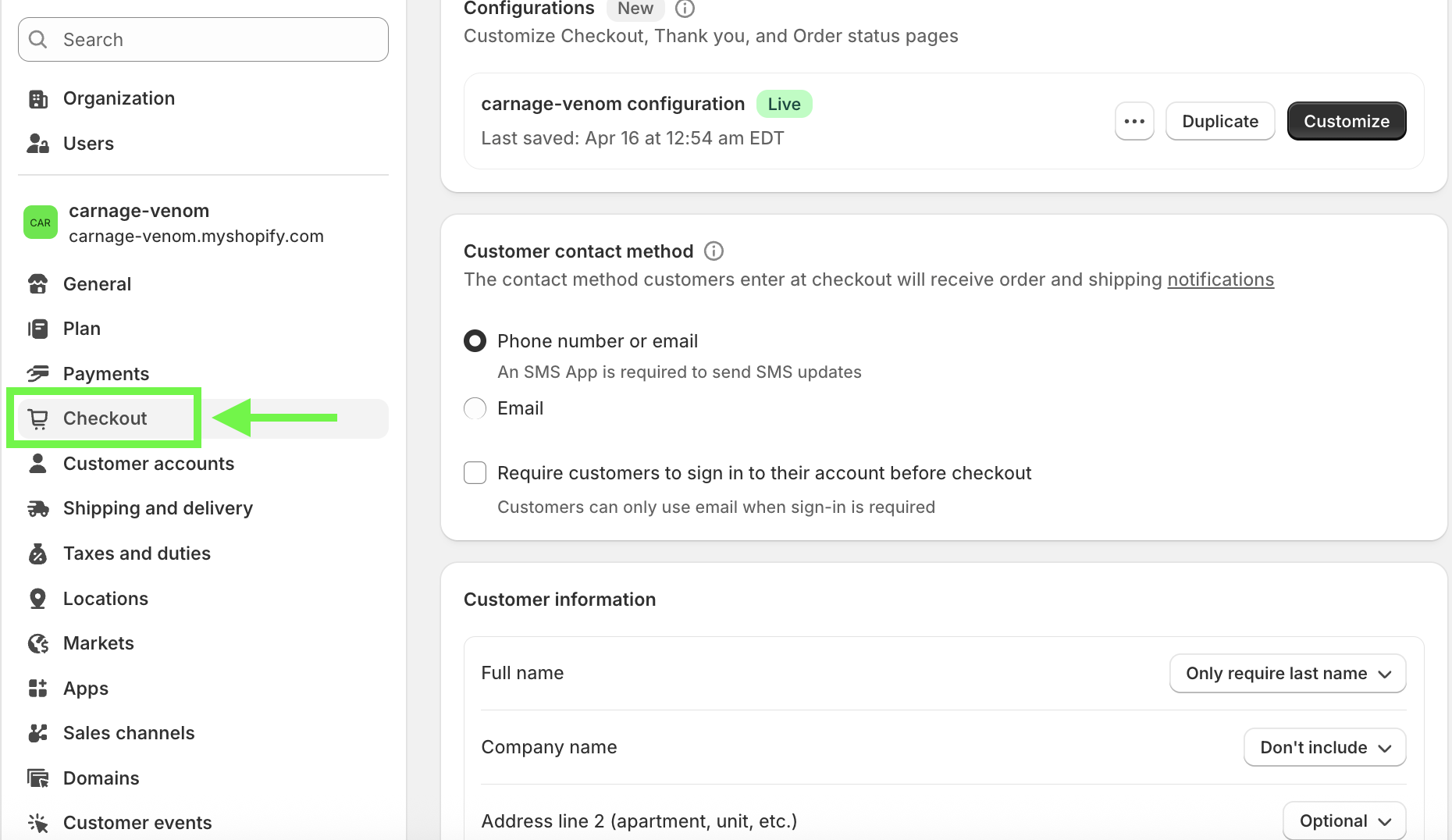
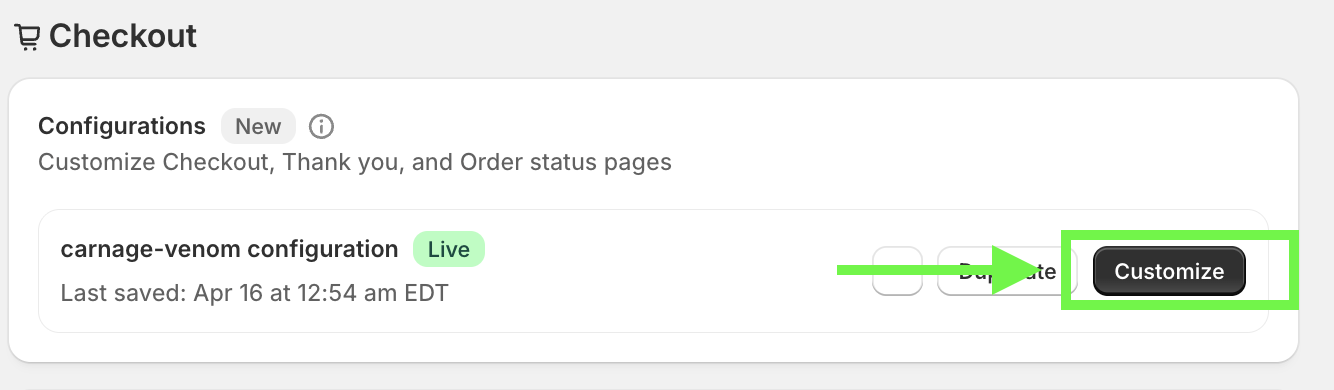
Step 2: Navigate to Checkout Settings
- Inside Settings → Click Checkout
- Locate the section for Checkout Customization
- Identify the option labeled Customize
Click Customize to proceed
Step 3: Open Checkout Editor
- This opens the Checkout Editor
- You will see:
- Thank You Page
- Order Status Page
- These are the pages where Nitro Rewards will be embedded
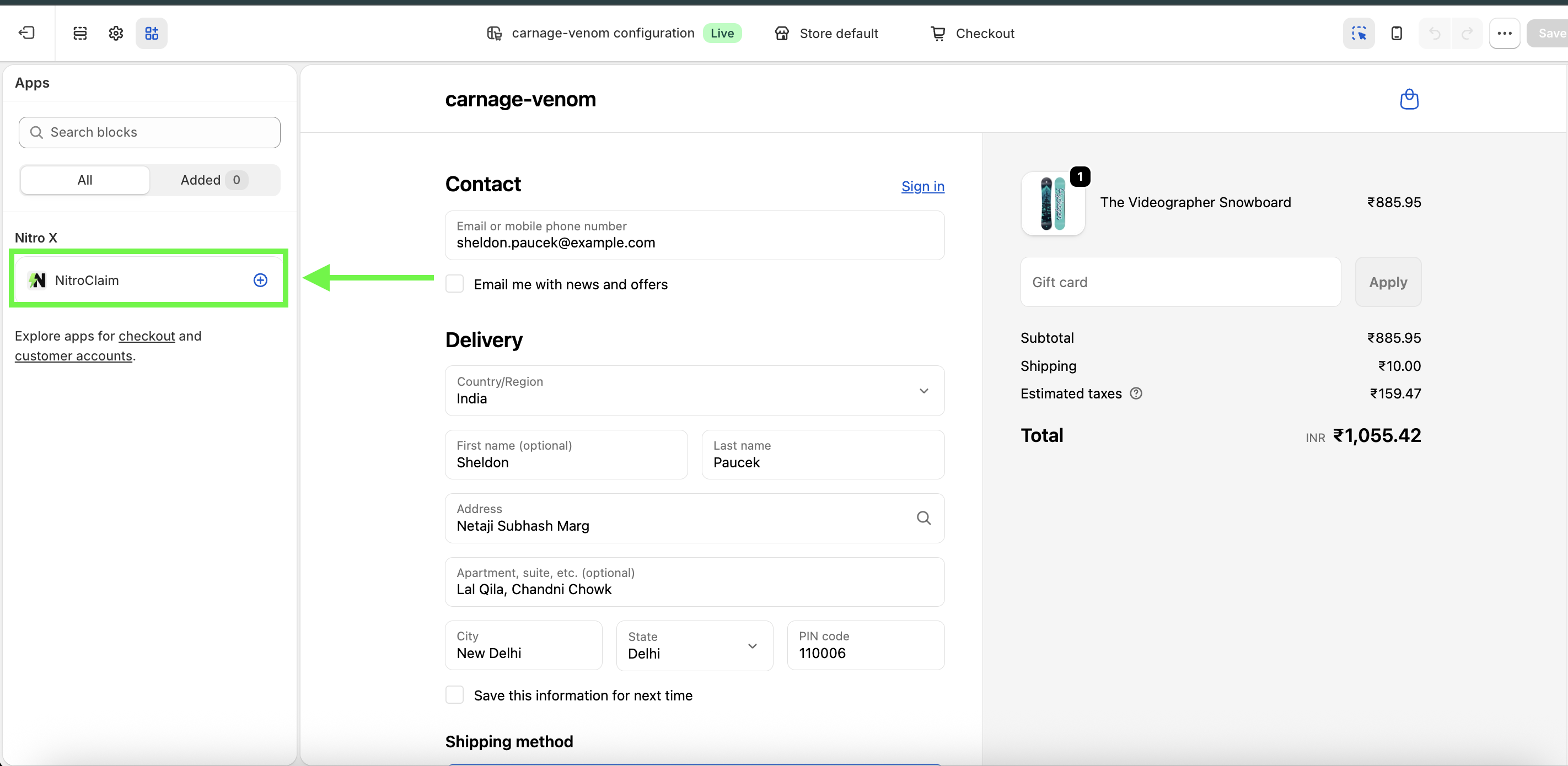
Step 4: Add “Nitro Claim” Extension
- Click Add App Block / Add Extension
- Select Nitro Claim from available extensions
This is the core widget that triggers Nitro Rewards
Step 5: Place Extension on Page
- Add Nitro Claim to:
- Thank You Page
- OR Order Status Page
- You will see a real-time preview of how it appears
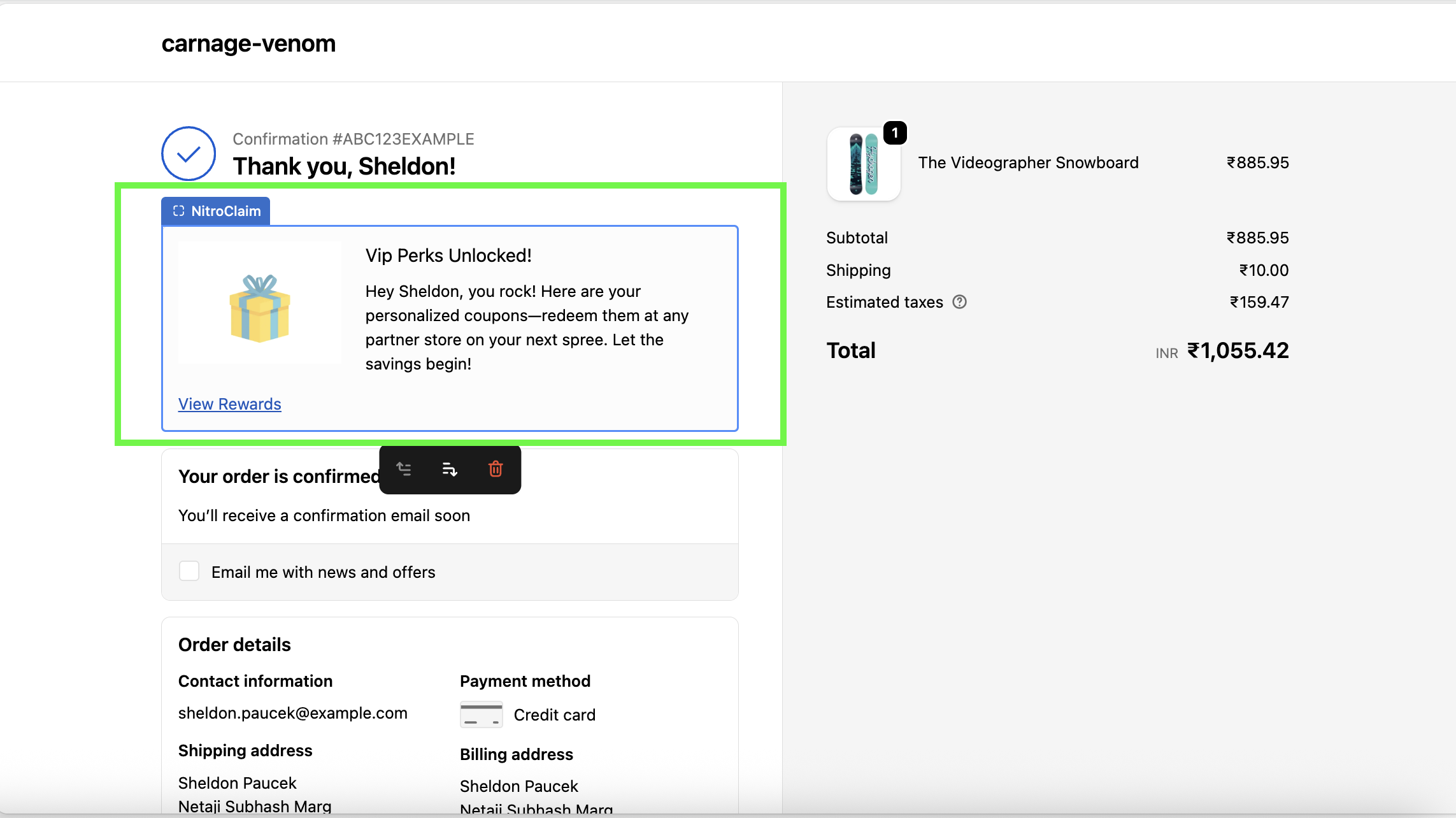
Step 6: Save Configuration
- Click Save (top-right corner)
- This ensures the extension is published
¶ Post-Integration Flow (User Experience)
Once integration is complete:
- User places an order
- Lands on Thank You / Order Status Page
- Sees Nitro Claim widget
- Click triggers redirect
- User lands on Nitro Rewards Page
¶ Testing Checklist (Mandatory)
Before marking brand Live:
- Widget visible on Thank You page
- Widget loads without delay
- Click redirects to Nitro Rewards page
- Rewards page loads correctly
- No checkout disruption
¶ Common Issues & Fixes
- Widget not visible → Extension not added correctly → Re-check placement
- Redirect not working → Link/config missing → Validate setup
- Page not loading → Script conflict → Escalate to Product
- Duplicate widgets → Added twice → Remove extra block
¶ Where This Fits in Overall SOP
This step is part of: → 03 Onboarding Steps — Go-Live Process
Specifically:
- Install Nitro Rewards
- Verify widget via test
- Mark brand live
¶ Pro Tips
- Always place widget above fold for better visibility
- Prefer Thank You page over Order Status page (higher engagement)
- During testing, place dummy order to validate real flow
- If performance is low → check widget visibility first